

Armored Client for IGEL provides SentryBay’s enhanced OS level protection for keystrokes, screen content, microphone and camera, giving protection against zero day attacks on sensitive information such as user names, passwords, and intellectual property, and securing your microphone and camera from snooping. Armored Client does not rely on blocking a known list of malware; snooping processes are blocked at an operating system level and will receive scrambled keystrokes and black images, protecting your data.
Armored Client for IGEL is installed with anti-keylogging and anti-screen capture enabled by default. Microphone and camera protection are not enabled by default. If you wish to change the default protection options, this can be done using a configuration profile in UMS:
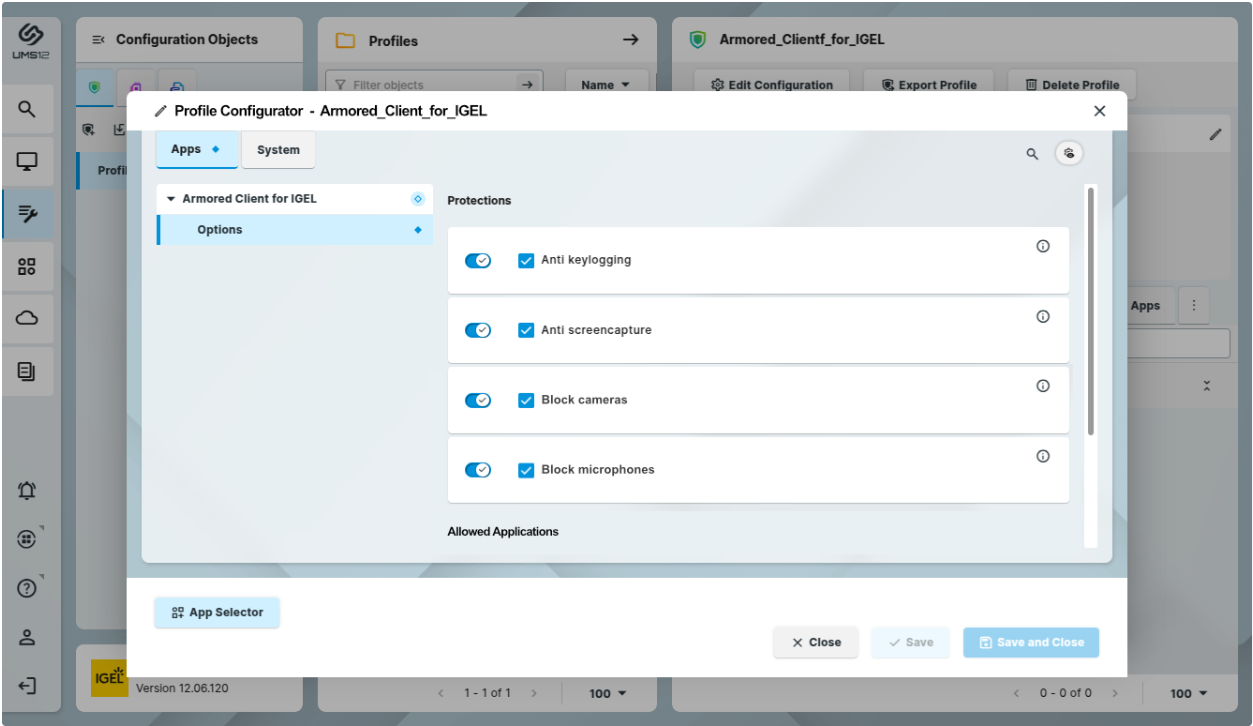
Under normal circumstances this does not require a reboot. Armored Client for IGEL will pick up the change within 30 seconds of the device configuration being applied.
It is possible to specify applications as exceptions which will not be blocked even if a particular protection is enabled. (Note, it is not possible to specify exceptions to the anti-keylogging protection.)
For example, you may wish your normal videoconferencing software such as Zoom or Teams to be able to use the camera, microphone, and share the screen. These exceptions can be specified in the next configuration section:
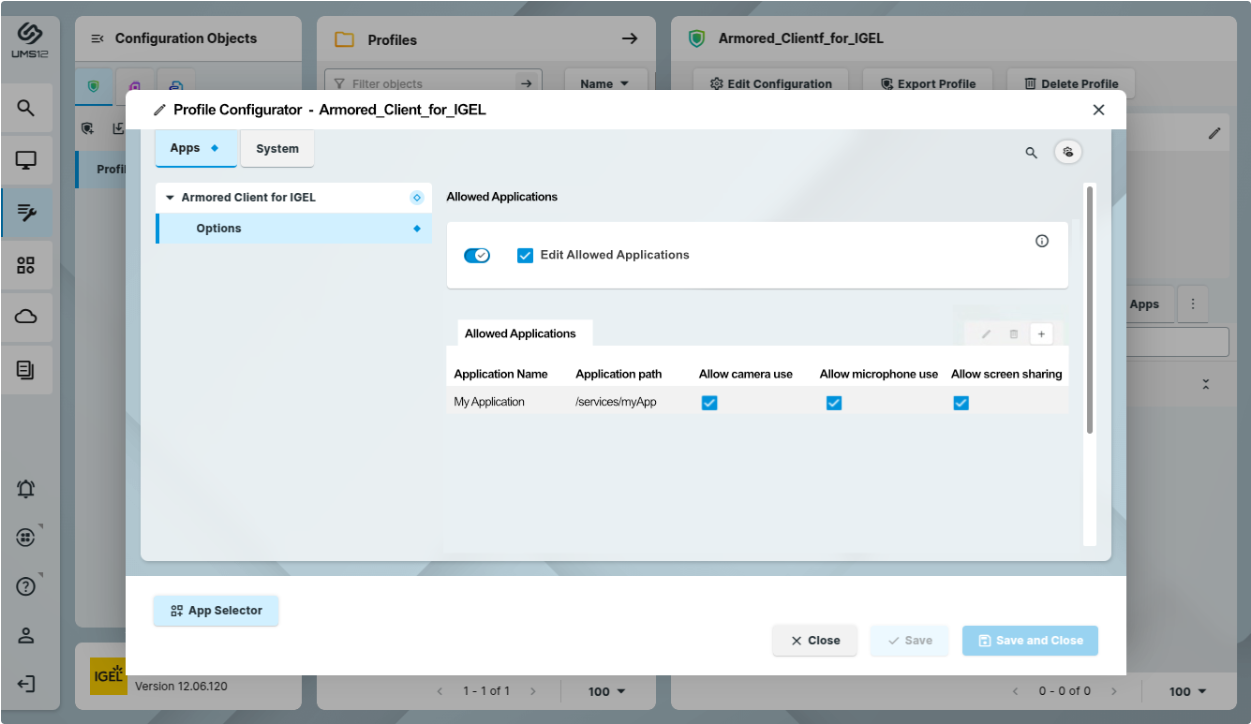
Examples (at time of publishing):
Under normal circumstances this does not require a reboot. Armored Client for IGEL will pick up the change within 30 seconds of the device configuration being applied.
Armored Client for IGEL requires a license from SentryBay. The license consists of two parts:
To obtain a valid license:
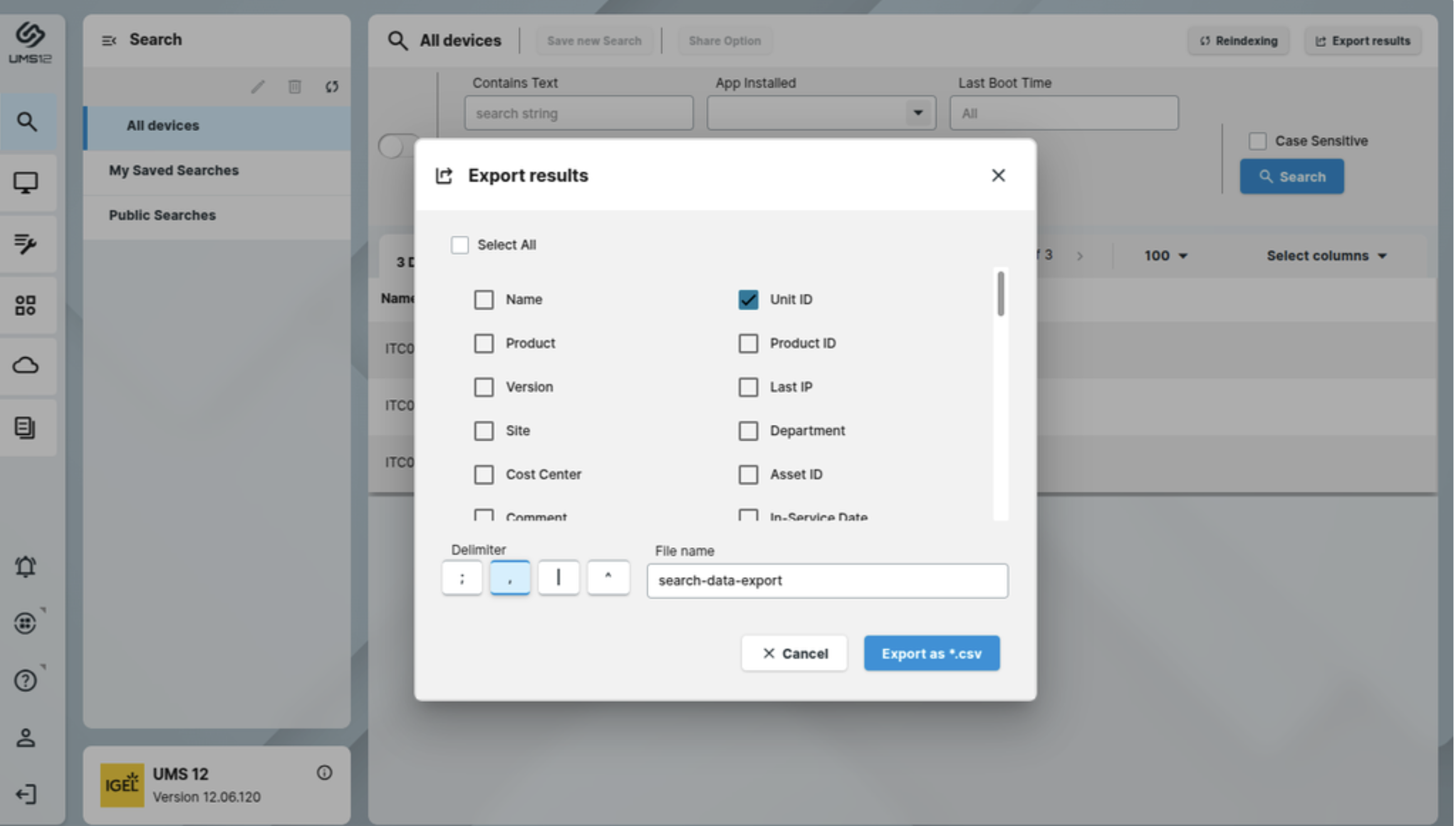
Note, please export the Unit Id(s) of all devices that will be running Armored Client for IGEL. The SentryBay license should cover all Armored Client devices in your company.
SentryBay support will confirm that your company has a current license with enough seats for the number of devices, and then respond with a license.txt file and a license.txt.sig file. These two files need to be distributed to all devices that are running Armored Client for IGEL.
Access rights to be set as:
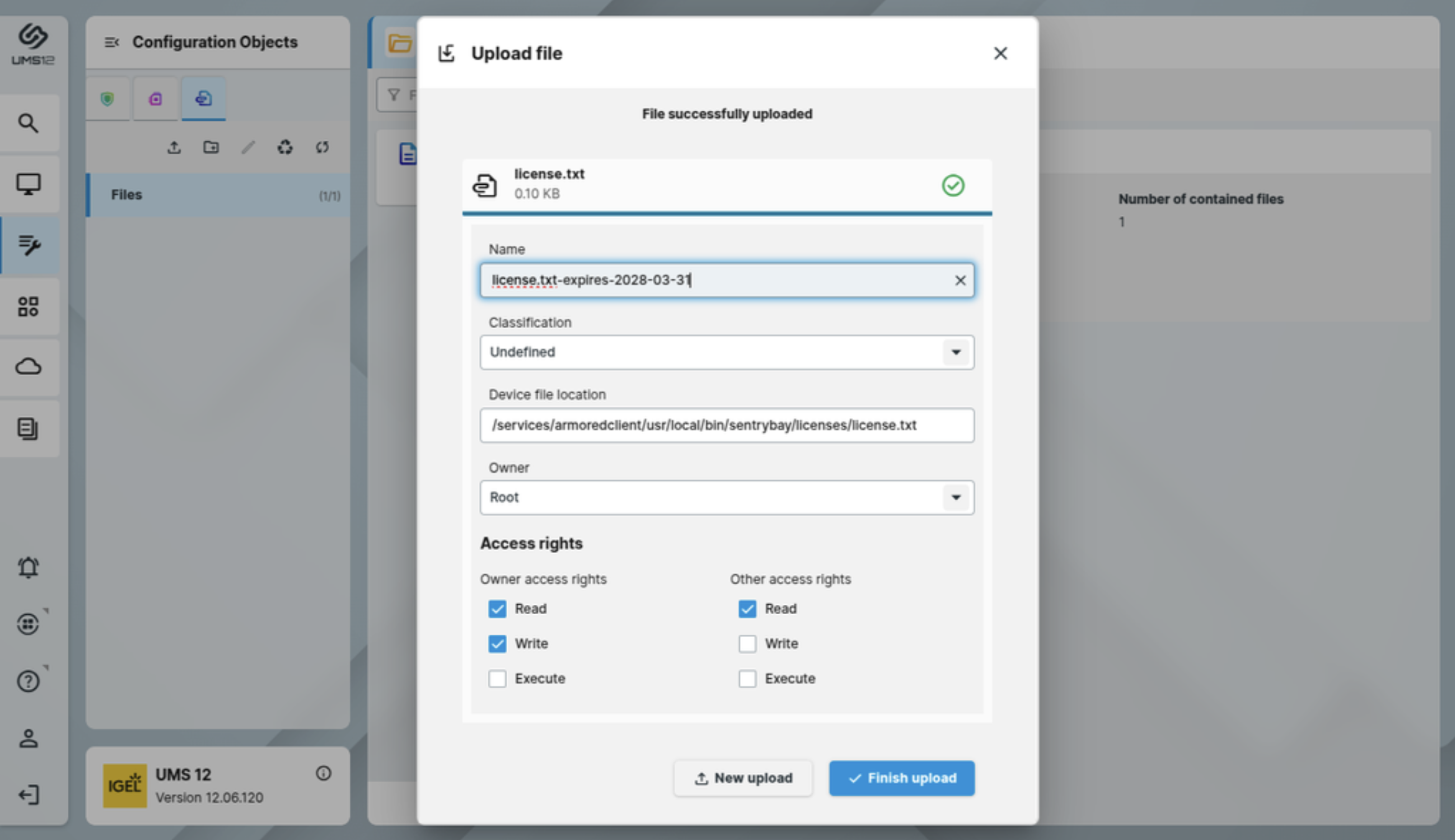
Access rights to be set as:
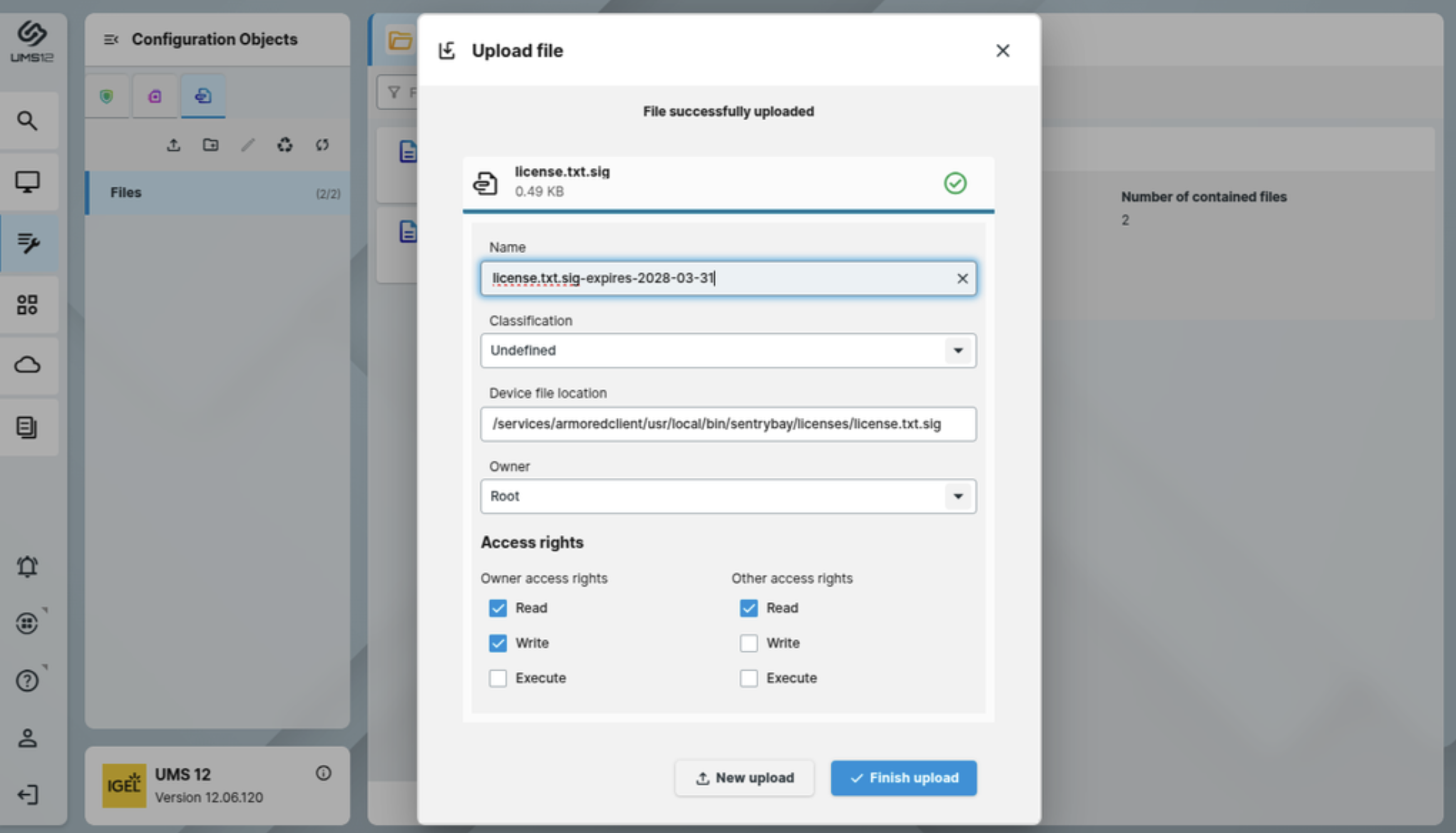
Licensing changes should be picked up by the Armored Client service within 30 seconds of the device configuration being applied and (assuming the license passes validation) protections will start working immediately.
If the list of devices changes (for example, if you need to license additional devices) then please create a new export for all the devices that will be running Armored Client for IGEL and follow the procedure above.